

AI ImageCreate
AI image generator for pictures from a description
Describe the picture you want and the AI image generator makes it. Choose a shape and a size up to 4K, pick a look, and add up to 10 reference images for the subject, the composition or the style.
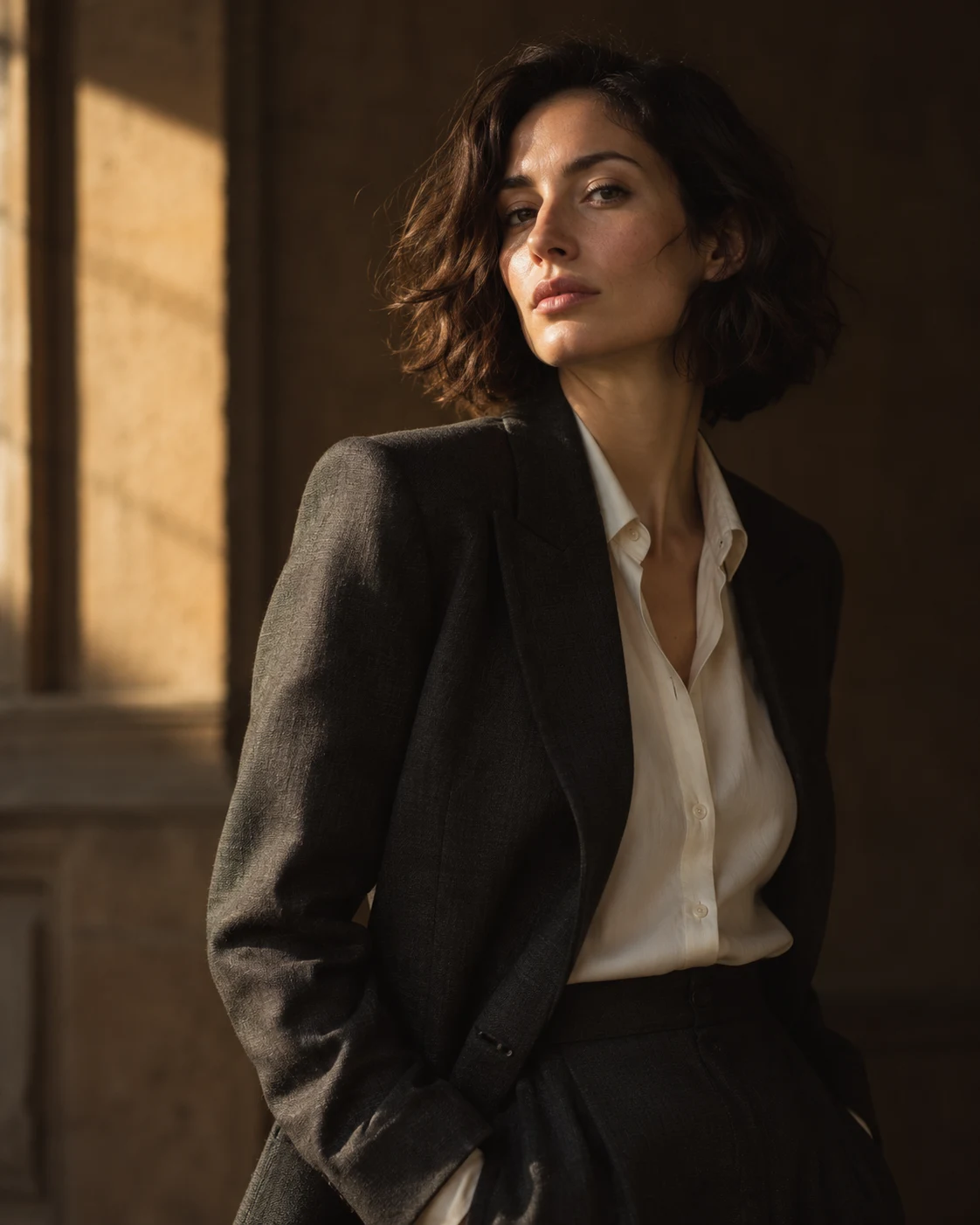
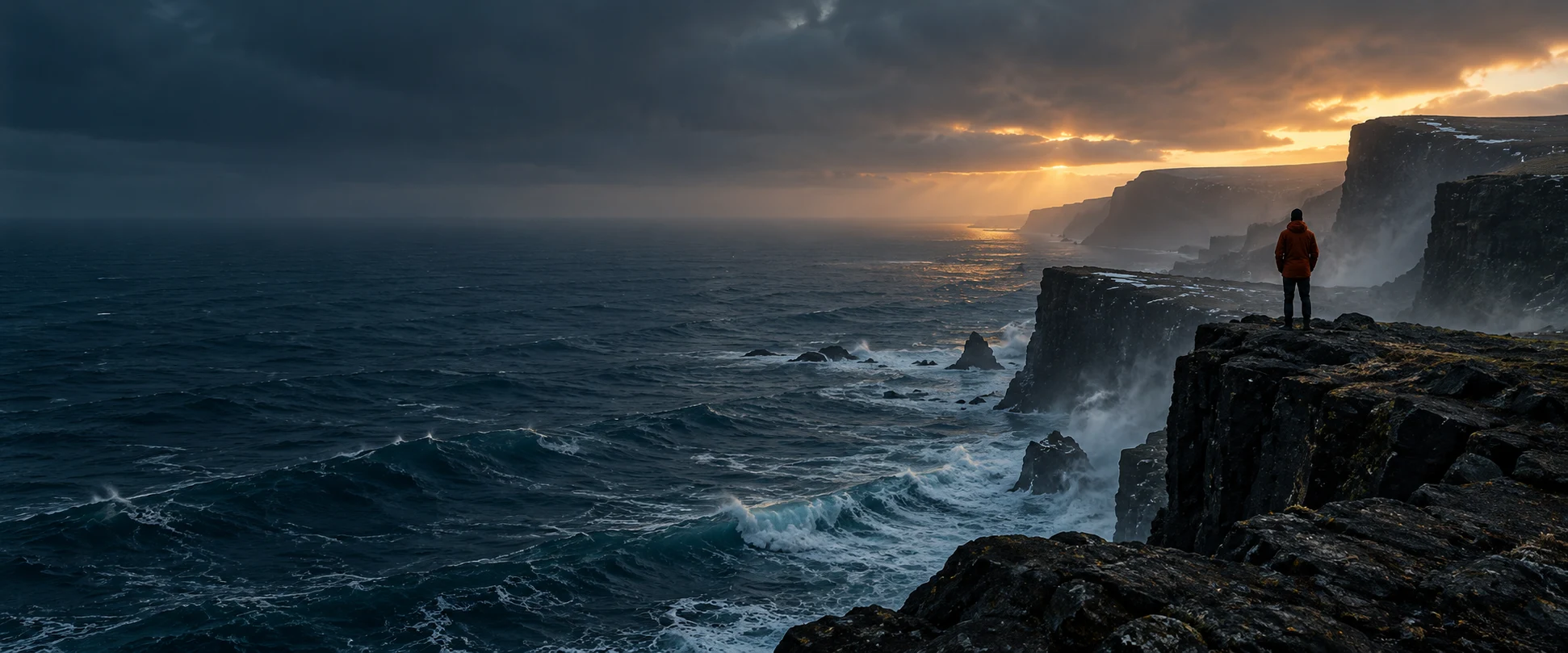
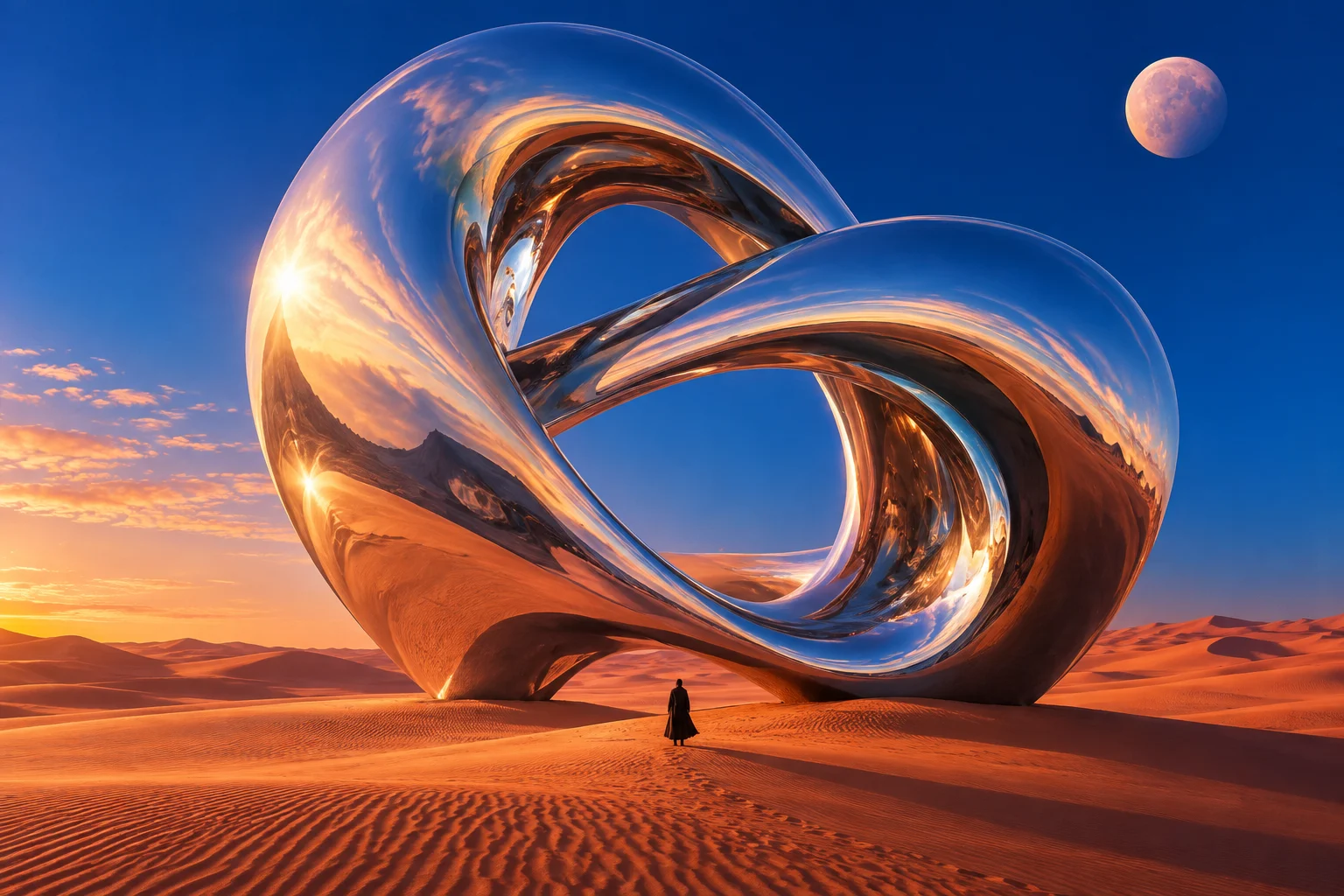
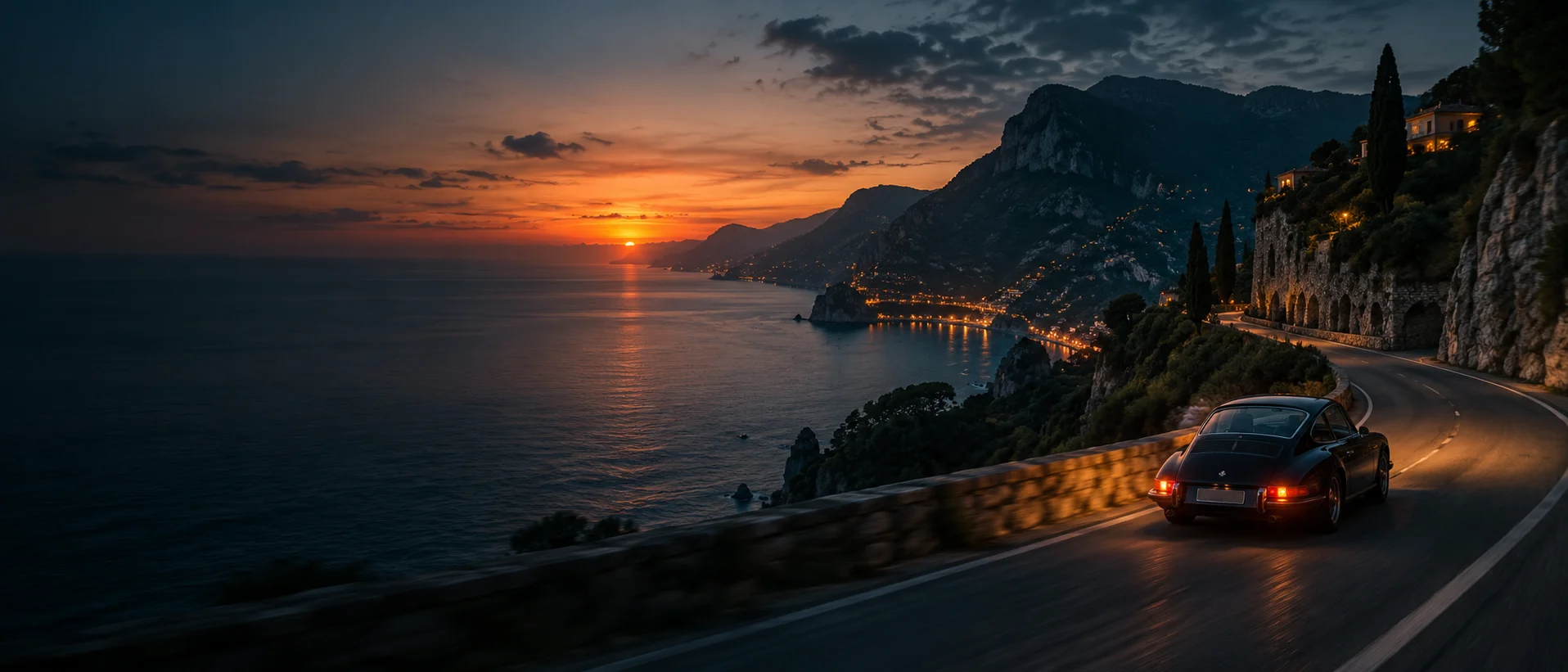
What AI Image can do
Text to image
Write what the picture shows, at any length from 10 characters: the subject, the setting, the light, the mood. A description longer than the model reads is shortened to fit by the AI. One request makes one image.
Fifteen shapes, or auto
Choose from 15 aspect ratios between 21:9 and 9:21, among them 16:9, 3:2, 1:1, 4:5 and 9:16. Auto leaves the shape to the generator.
Five sizes up to 4K
Set the resolution to 768, 1K, 1.5K, 2K or 4K. A new picture starts at 2K.
Up to 10 reference images
Add pictures from your library to guide the subject, the composition or the visual style, and say in the prompt what each is for. A reference can be up to 10 MB.
Six photographic looks
Cinematic, Editorial, Product, Analog and Surreal each add a line about lighting, composition and texture to your prompt. Natural adds nothing.
Presets you can keep
Save a prompt with its shape, size and look under a name. A preset can be renamed, duplicated, downloaded as a file and imported again.
Saved as a PNG at full size
The picture is stored as a PNG at the size it was generated, in the Image library and in your media library. Download it from its card.
Ready for video and design
A finished image opens in the video editor as a clip. From your library it can also be the first frame of an AI Video clip, a picture in a Design Studio layout or a reference for the next image.
How AI Image works
Describe the picture
Open AI Image and write what you want to see. The more exactly you name the subject, the setting and the light, the less is left to chance.
Choose shape, size and look
Pick an aspect ratio and a resolution. Open Creative direction to choose a look, and add reference images if you have them.
Generate the image
Press the round arrow beside the prompt (Generate image). The request waits in a queue, is generated in the background and is saved to your library.
Use it or download it
The image opens in the video editor. Its card in the Image library has Download, Use in an edit and Reuse settings.
AI Image formats and limits
Last updated .
| Detail | AI Image |
|---|---|
| What goes in | A prompt of any length from 10 characters (the AI shortens one past the model's 2,000), and optionally up to 10 reference images |
| What comes out | One PNG image a request, at the size it was generated |
| Aspect ratios | 21:9, 2:1, 16:9, 3:2, 7:5, 4:3, 5:4, 1:1, 4:5, 3:4, 5:7, 2:3, 9:16, 1:2, 9:21, or auto |
| Resolution | 768, 1K, 1.5K, 2K or 4K; 2K unless you change it |
| Looks | Natural, or one of five: Cinematic, Editorial, Product, Analog, Surreal |
| Reference images | Up to 10, each used once, each up to 10 MB and about 24 MB together |
| Cancelling | Only while the request is still in the queue |
| Credits | 5 credits an image, given back if it fails or is cancelled |
| Where it is kept | The Image library and your media library, each image with its prompt and settings |
Who AI Image is for
Video editors who need a still
Make a background, a title-card backdrop or a cutaway picture and drop it on the timeline.
Marketers picturing a product
Describe the setting and add photos of the product as references for the generator to follow.
Designers starting a layout
Generate the main picture for a poster or a thumbnail, then set type over it in Design Studio.
Filmmakers planning a shot
Compose the opening frame as a still, then hand it to AI Video as the first frame of a clip.
Writers and teachers
Illustrate an article, a slide or a lesson with a picture made for that one idea.
AI image generator questions, answered
What does the AI image generator make?
A still picture from a written description: a portrait, a product photograph, a place, a scene nobody could photograph. One request makes one PNG. It does not make video or animation; AI Video and AI Motion do.
What sizes and aspect ratios can I choose?
Five resolutions, named 768, 1K, 1.5K, 2K and 4K, and 15 aspect ratios from 21:9 to 9:21, plus auto. Both are set before you generate. The Image studio does not crop or resize a finished picture, so for another shape you generate again.
How do reference images work?
Choose up to 10 pictures from your library, or upload them there first, and describe in the prompt how each should be used. They are sent to the image provider with your prompt when you generate.
Can I edit an image after it is generated?
Not with a brush, an eraser or a mask: you cannot repaint one part of a picture. To change it, add the picture as a reference, describe what should differ and generate again.
How many images does one prompt make?
One. To see another version, generate again. Every result stays in the Image library with the prompt and settings that made it, and Reuse settings puts them back in the form.
How many credits does an image use?
5 credits an image. A request still in the queue can be cancelled, and its credits are given back.
Where can I use a generated image?
Wherever the studio takes a picture from your library: on the timeline of the video editor, as a first frame in AI Video, in a Design Studio layout or as a reference for another image. You can also download the PNG.
What can the AI image generator not do?
It does not upscale, remove a background or retouch a photo you upload. It does not build a graphic from editable layers of type and shapes either; Design Studio does that.
AI Image
The picture in your head, made real.
Free to start, with 200 credits a month. Paid plans from $10 a month.